
Introduction
Due to Open Door Group’s contractual requirements, we must always ensure we’re properly handling sensitive or personally identifiable information, especially when sending it electronically. For clarity surrounding what is deemed sensitive, always consult your manager.
If you must send something that is considered sensitive or personally identifiable through email, the preferred method is to package the sensitive contents into a compressed .zip file, and encrypt the resulting .zip file. Alternatively, you can encrypt the entire email it self but it is a much more complex process and is not covered here.
Please follow these steps to package and encrypt a file for electronic transmission.
Instructions
- Ensure you have 7-Zip installed by right-clicking on any file or folder and look for the 7-Zip link in the context menu. If you see 7-Zip, please skip to step 2, otherwise please itsupport@opendoorgroup.org to have 7-Zip installed on your computer.
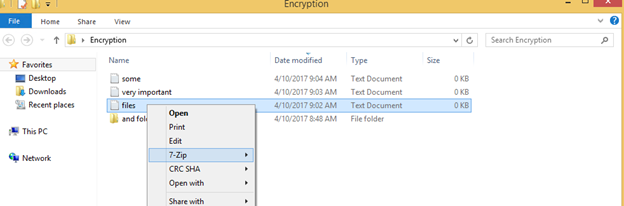
Alternatively, you may search for 7-Zip in the Start menu located bottom left of your screen, once opened immediately type “7”, make sure the search option is “Everywhere”. If you see “7-Zip File Manager” showing up, please skip to step 2.
- If you are sending a single file, skip to step 4.
- If you are sending multiple files, copy them all into one folder.
- Right-click the file (or folder) that is to be encrypted, and choose “7-Zip -> Add to archive…”. If you do not see this option, you don’t have 7-Zip installed, refer back to step 1.
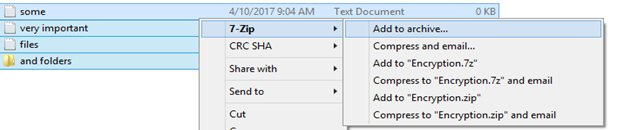
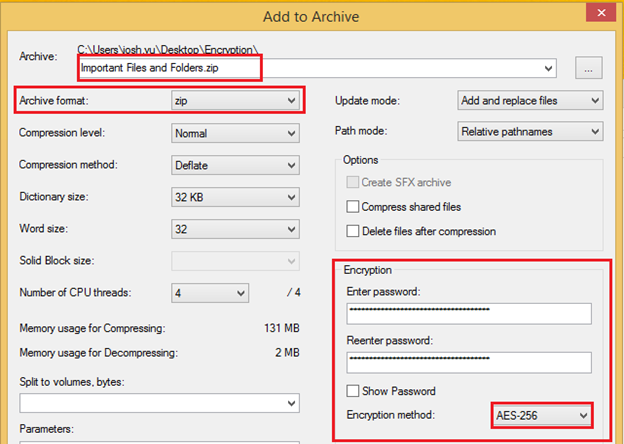
- A 7-Zip configuration window will open. Within that window, do the following:
- Give the archive a meaningful name.
- Ensure the Archive format is set to
- Ensure the Encryption method in the lower-right corner is set to AES-256.
- Enter a password (twice) that will be used to encrypt and decrypt the .zip file.
- Press OK.
- The resulting file will be a .zip file with the name you chose. This is the fully packaged, encrypted file.
- Compose an email and attach this file as normal. The contents of the .zip file are now encrypted according to ministry standards, and require your password in order to unlock.
- Determine a safe and secure way to send the password to your recipient (separate from this email).
For the Recipient
- The receiver of the file will require something capable of decryption. This can be built-in windows tools or 7-Zip. If they attempt to extract the contents of the zip file without entering a password, the unzipping operation will fail.
Comments or Questions
For any questions or comments, please email us at itsupport@opendoorgroup.org.
Comments
0 comments
Please sign in to leave a comment.