
Video Instructions
Written Instructions
1. Click File to go to the Outlook 2010/2013 Backstage view (Fig. 2).
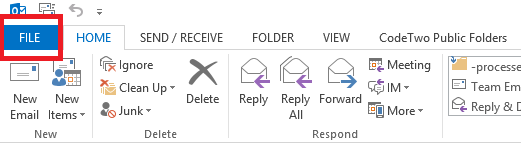
Fig. 2. File button in Outlook 2013.
2. Click Options (Fig. 3).
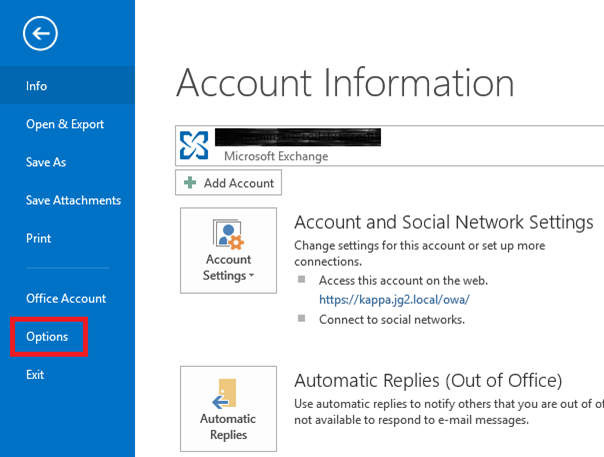
Fig. 3. Options button in Outlook 2013 Backstage view.
3. In the resulting window choose the Mail tab and then click the Signatures… button (Fig. 4).
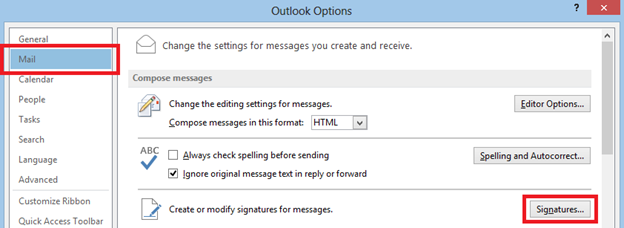
Fig. 4. Outlook Options – Signature button in the Mail tab.
If you have never created an email signature in your Outlook, the Signatures and Stationery menu should look something like this:

Fig. 5. Signatures and Stationery menu in Outlook 2013.
II. Once you are in the Signatures and Stationery menu, either highlight the signature you want to modify, or click New, type in the name of your new signature and click OK – I’ll just call mine “New signature” (Fig. 6).
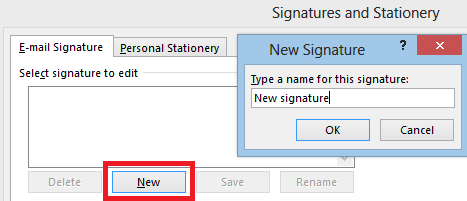
Fig. 6. Creating a new signature – first step.
Comments
0 comments
Please sign in to leave a comment.